Turn on HIPAA protection.
If you work with medical records or other health information, turn this on in your Claude account before you use real client files. It's free and takes a few minutes.
Turning on HIPAA protection puts Anthropic's Business Associate Agreement (BAA) in place for your organization. It's a legal agreement in which Anthropic commits to safeguard the health information you send, to use it only to provide the service, to report any breach to you, and never to use your content to train its models.
The Claude chat app
Claude's regular chat app on Free, Pro, Max and Team plans can't be covered by Anthropic's Business Associate Agreement. Don't paste client health information into it.
Your Claude API account
You can turn on HIPAA protection yourself, in a few minutes, for your Claude API organization. This is the account our software connects to, which makes it the most practical way for a practice to use Claude with private medical information.
Anthropic's Enterprise plans can also be covered, through Anthropic's sales team.
Make sure your organization is a team organization
The HIPAA compliance card only appears for team organizations. New Claude Console accounts often start as an individual organization (the name usually ends in "Individual Org").
To check, open Organization settings, then Organization in the left menu. If you see a Convert to team organization section at the bottom, click Convert to team.
This doesn't change your API key, credits or billing, and it doesn't affect your Claude chat app account, which is separate from the Console.
A team organization in the Claude Console is not the same as the Claude Team plan for the chat app. Converting your Console organization doesn't change your chat subscription.
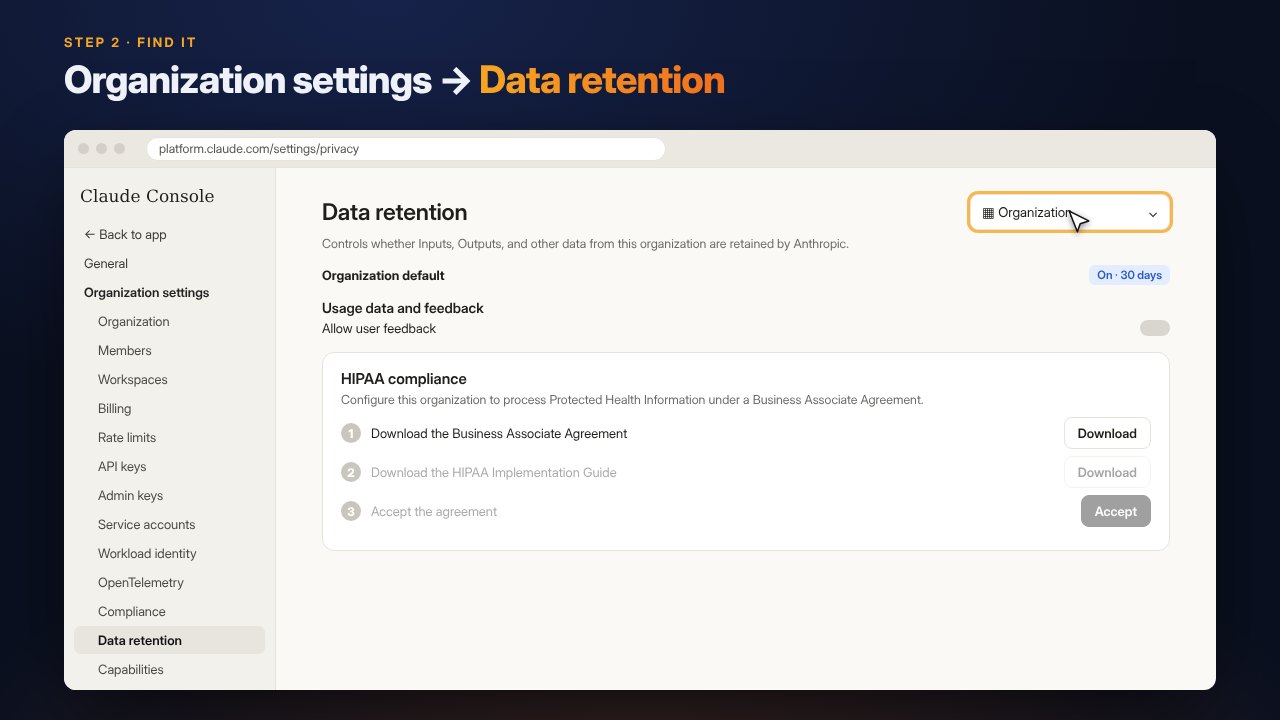
Open Data retention
In the Claude Console, open Organization settings, then Data retention in the left menu.
If the menu at the top right doesn't say Organization, select it. The HIPAA compliance card is near the bottom of the page. If you don't see the card, go back to the previous step and check that your organization is a team organization.
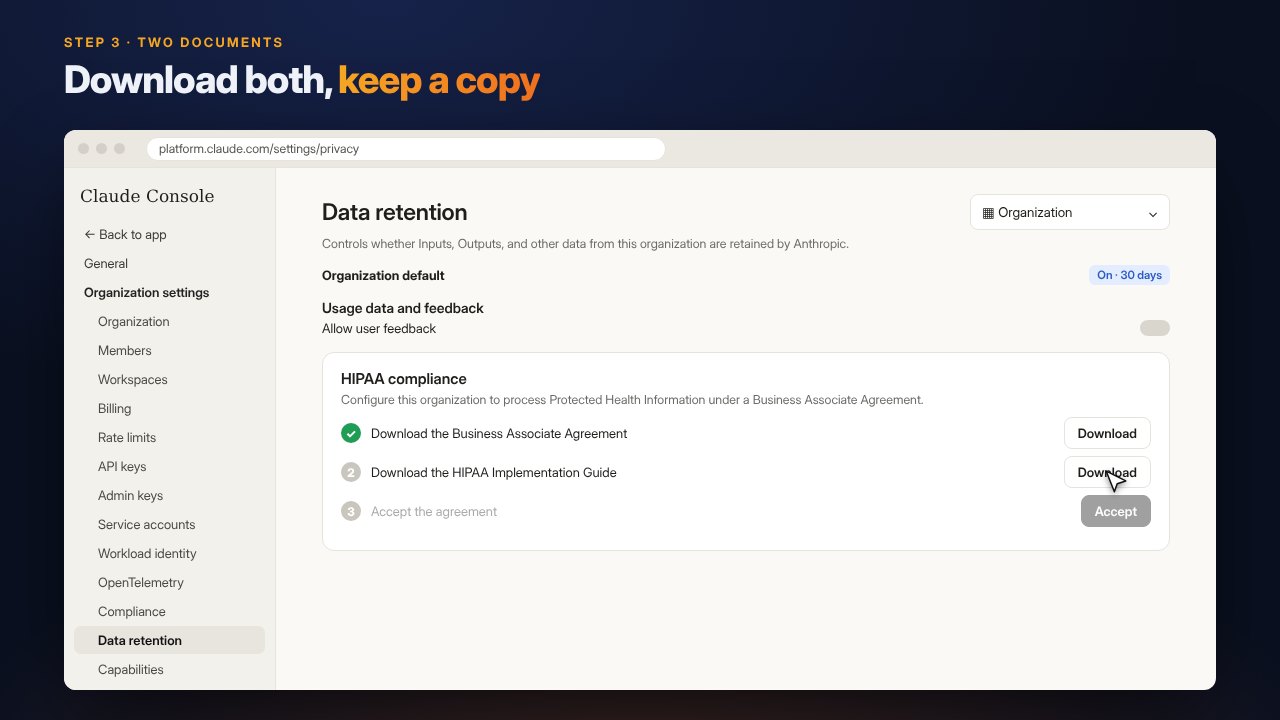
Download both documents
Download the Business Associate Agreement, then the HIPAA Implementation Guide. Each step unlocks after the one before it.
Keep both with your practice records, and read the guide. It explains what you may and may not do with health information.
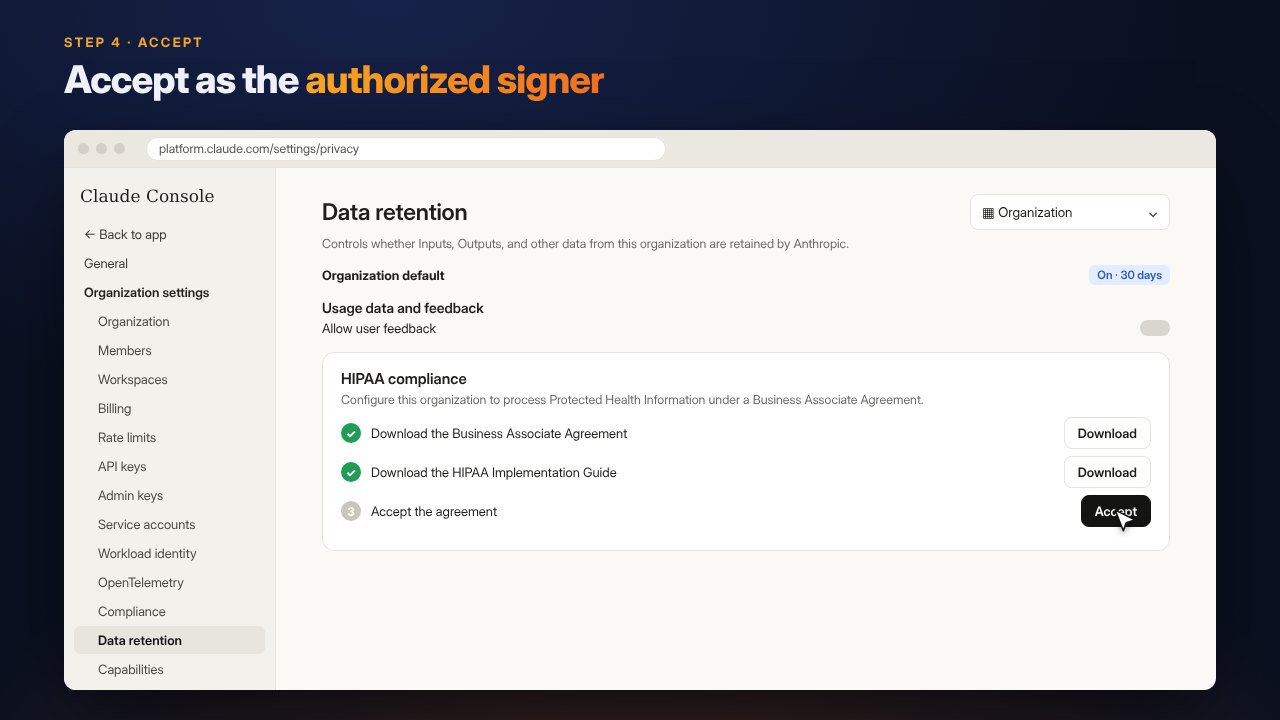
Accept the agreement
Accept the agreement as the person authorized to sign for your practice. It takes effect immediately.
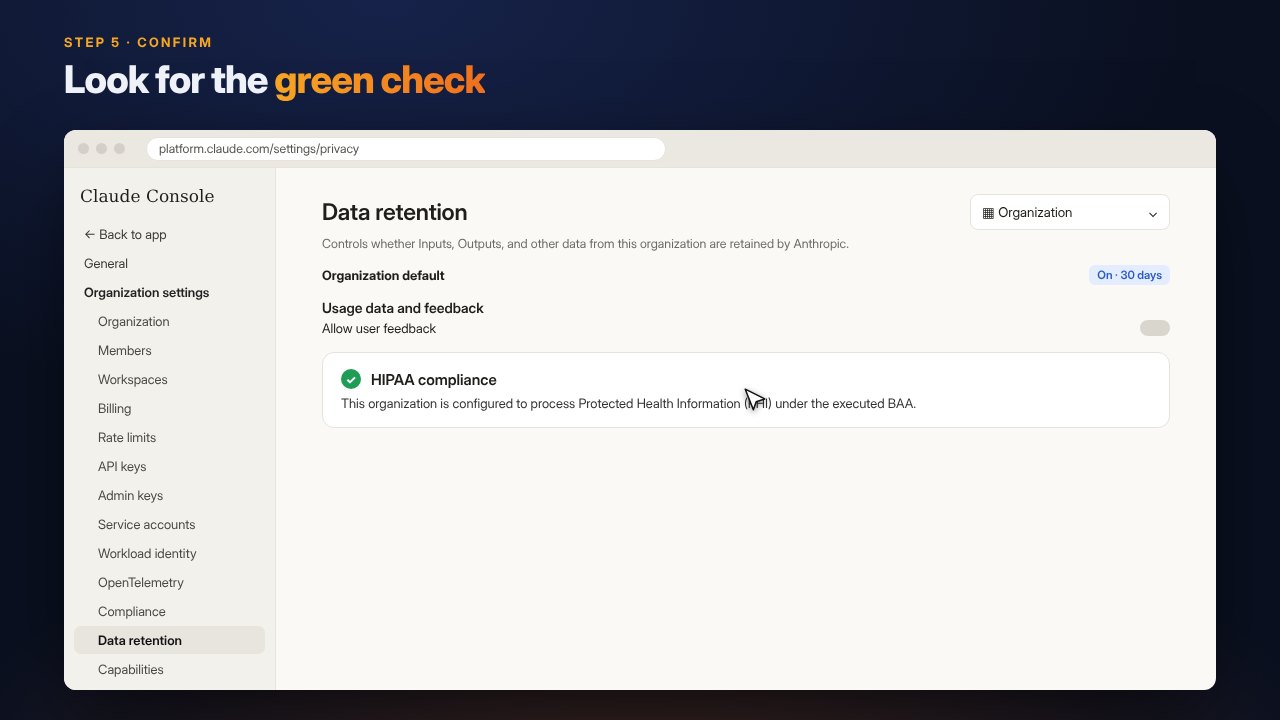
Look for the green check
The card now shows HIPAA compliance with a green check and the message "This organization is configured to process Protected Health Information (PHI) under the executed BAA."
While you're on this page, leave Allow user feedback turned off, and don't join the Development Partner Program. Our software doesn't need either.
Four things to remember
It's permanent
Once turned on, HIPAA protection can't be switched off for that organization. That's what you want for client work. Keep unrelated projects in a separate organization.
Use a key from this organization
Only API keys created in your HIPAA-enabled organization are covered. If you made your key earlier in the same organization, it's covered too.
Health information goes in your files only
Keep it out of your organization and workspace names, your profile, your billing details and any support requests to Anthropic.
The Console itself isn't covered
The agreement covers requests our software sends through your API key. Typing or pasting client information into the Console's own screens, such as the Playground, isn't covered. Claude Code isn't covered either.
Clear commitments, under your own rules.
HIPAA is a U.S. law and doesn't apply directly in Canada. The agreement still gives you clear written commitments about how health information is handled. Your own obligations come from PIPEDA and provincial health privacy laws, such as Ontario's PHIPA, Nova Scotia's PHIA and Quebec's Law 25.
Check the rules in your province, let clients know that AI is part of your process, and send only the information each task needs. The privacy shield and redaction tools in our software help with that. This is general information, not legal advice. See our privacy page for more.